
Members! customer manual#
Applies to: Members! 2.0
Audience: studio owners, administrators, and front-desk staff
Members! is an iPhone and iPad app for managing members, memberships, classes, bookings, attendance, supported payments, and member QR cards.
Before you start#
You need:
- an iPhone with iOS 26 or an iPad with iPadOS 26;
- camera access for QR scanning and photos;
- an iPad passcode, Touch ID, or Face ID before using Member Mode;
- a configured SumUp account and compatible terminal only if you charge through the integrated SumUp flow;
- a compatible Epson or Star receipt printer, or an Apple system printer, if you print member cards.
Members! stores its operating data locally on the device. The local app remains usable if internet access is interrupted. Online staff sign-in, synchronization, real Apple and Google Wallet passes, and the members.fitness class portal require the secure Members! server, which must be activated for your studio. Members can view, book, or cancel online only while connected. Wallet delivery is activated per studio; general customer email, including booking notices and reminders, remains disabled until separately approved.
Before a live rollout, agree who owns the device, backups, access control, payment account, printer support, and customer support.
You do not need SumUp to save a membership with a manually recorded payment or with payment still due. Manual recording does not move money.
First setup#
Complete the following in order:
- Open Today, then select Settings.
- Under Studio, enter the studio name and choose EUR, GBP, or USD as the default currency. Open Studio email, enter the address where your studio receives replies, and select Save.
- Under Check-in cameras, choose whether the rear owner scanner should stay active while staff use other parts of the app.
- On iPad, open Manage; on iPhone, open More. Add reusable class types, teachers, and rooms from their separate screens.
- Create the membership plans the studio sells, including the classes each plan permits.
- If you will charge through Members!' integrated SumUp flow, connect the merchant account under Settings > SumUp payments.
- If receipt printing is required, configure and test an Epson or Star printer under Settings > Printing.
- On Today, select Subscribe to start scanning. Sign in with Apple using the Apple Account that will own this studio subscription.
- Review the monthly price shown in the app, select Subscribe, and confirm the purchase in Apple's payment sheet. Apple charges the Apple Account and renews the subscription monthly unless you cancel it in your App Store subscription settings. Once Members! confirms the purchase, the check-in scanner opens automatically. If the subscription is already active, select Start scanning on Today.
If you already subscribed with this Apple Account, open Settings > Studio subscription, sign in with Apple, and select Restore purchases. Restoring checks the existing subscription without buying it again. It restores access to live check-in, not member records stored on another device. When paid access is active, Members! connects the studio's Wallet account automatically; check Settings > Wallet account if the connection needs attention.
The studio email is a reply address for Wallet messages sent through Members!. The sender remains wallet@members.fitness, with the studio name shown. Only saved changes are used; clear the field and save to remove the studio reply address. This setting does not activate email delivery or guarantee inbox placement. Sending directly from the studio’s own address requires separate email-domain setup. The studio reply address is used only after support verifies it; saving it alone is not verification.
Move around Members!#
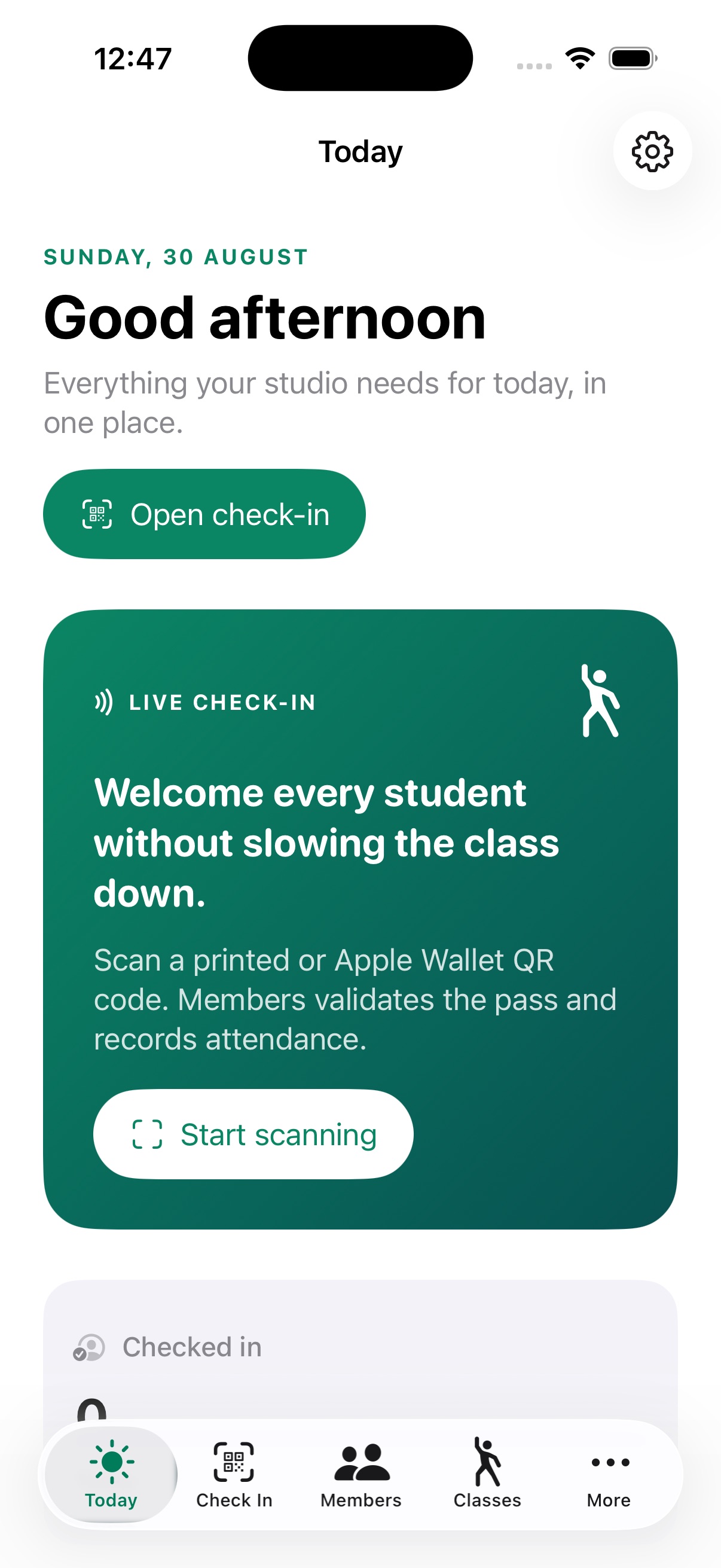
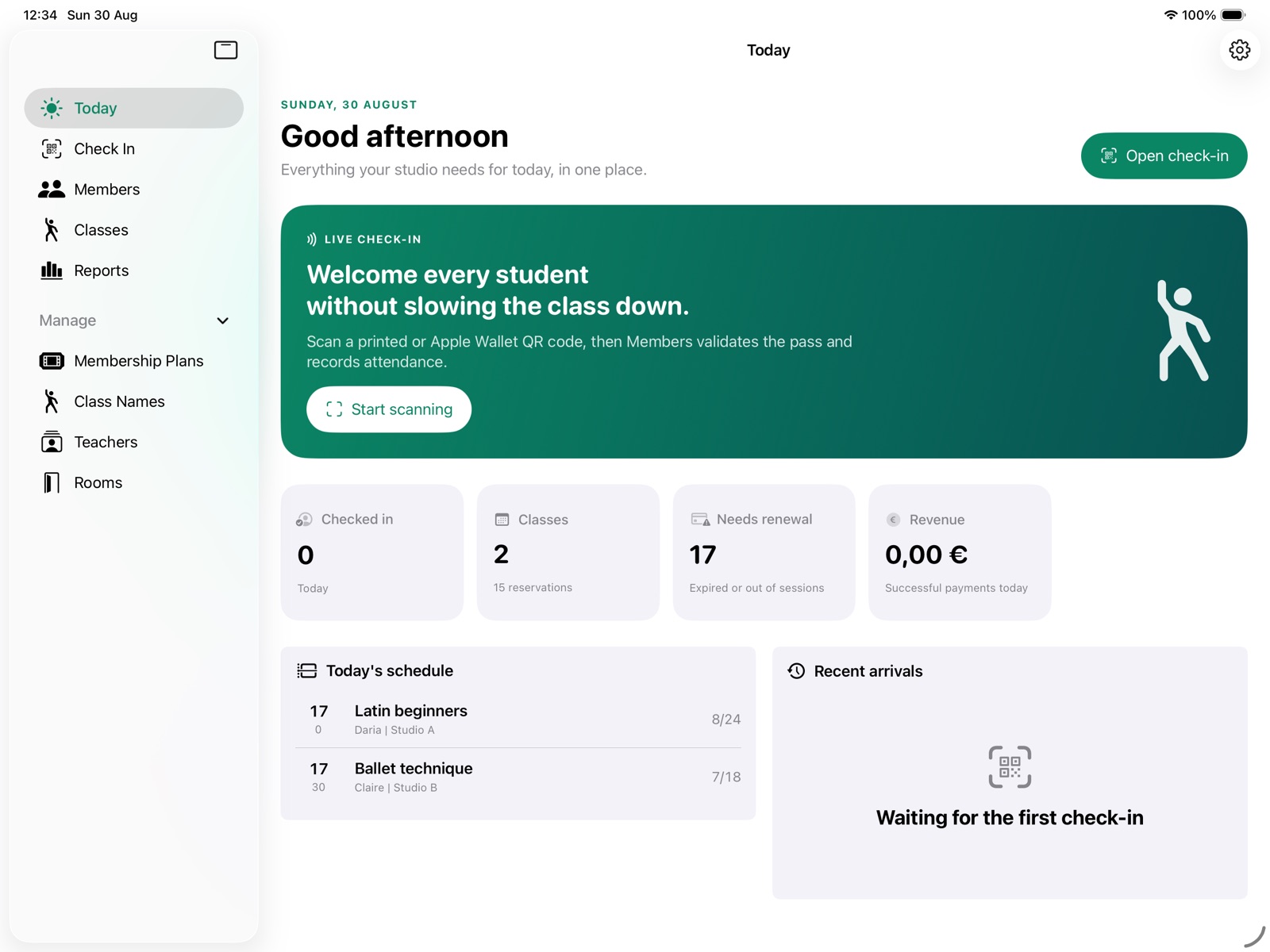
- Today shows today's check-ins, classes, renewals, collected payments, schedule, and recent arrivals.
- Check In scans or enters member codes and can attach attendance to a selected class.
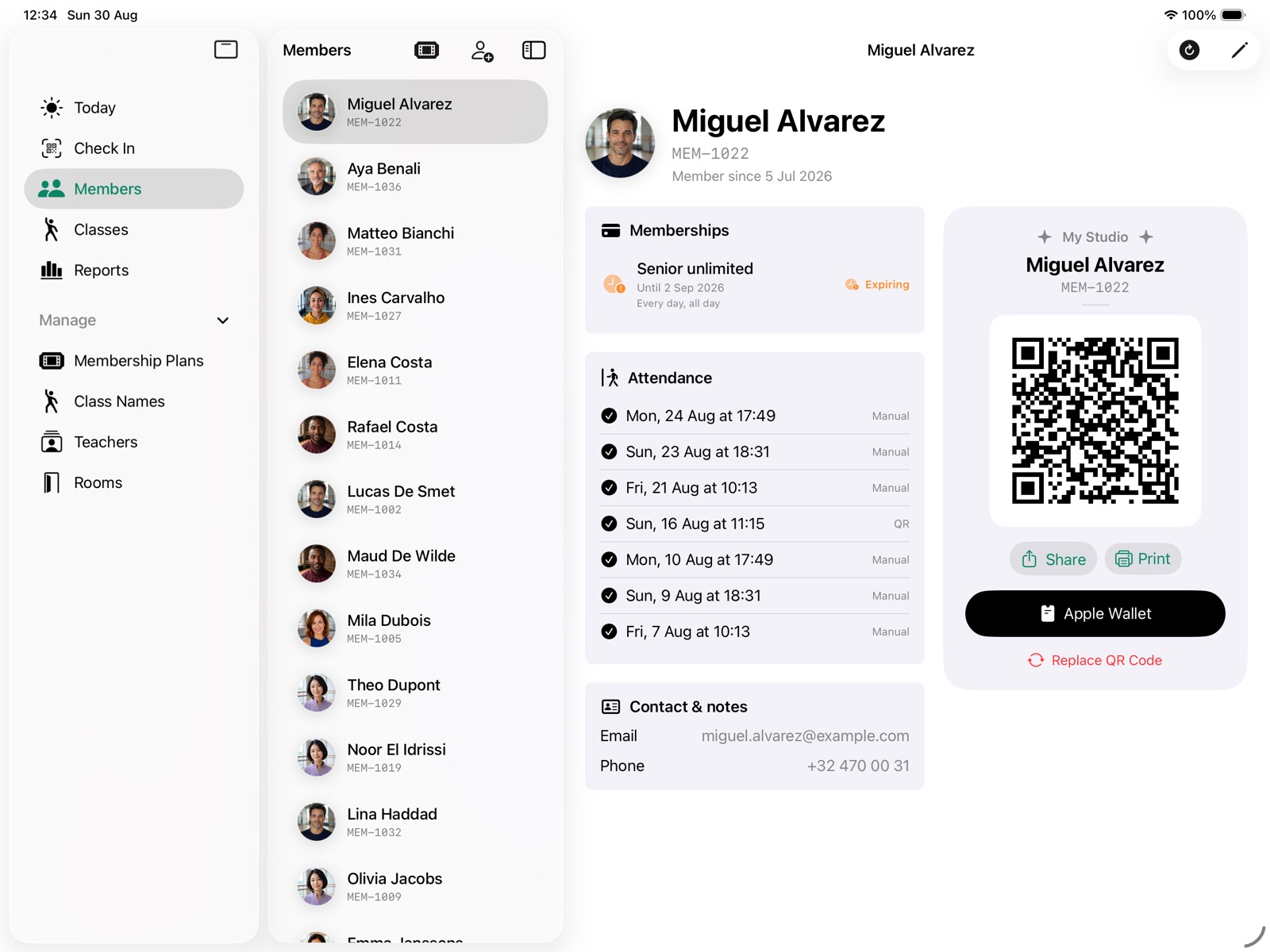
- Members stores member profiles, memberships, attendance, QR cards, and Wallet access.
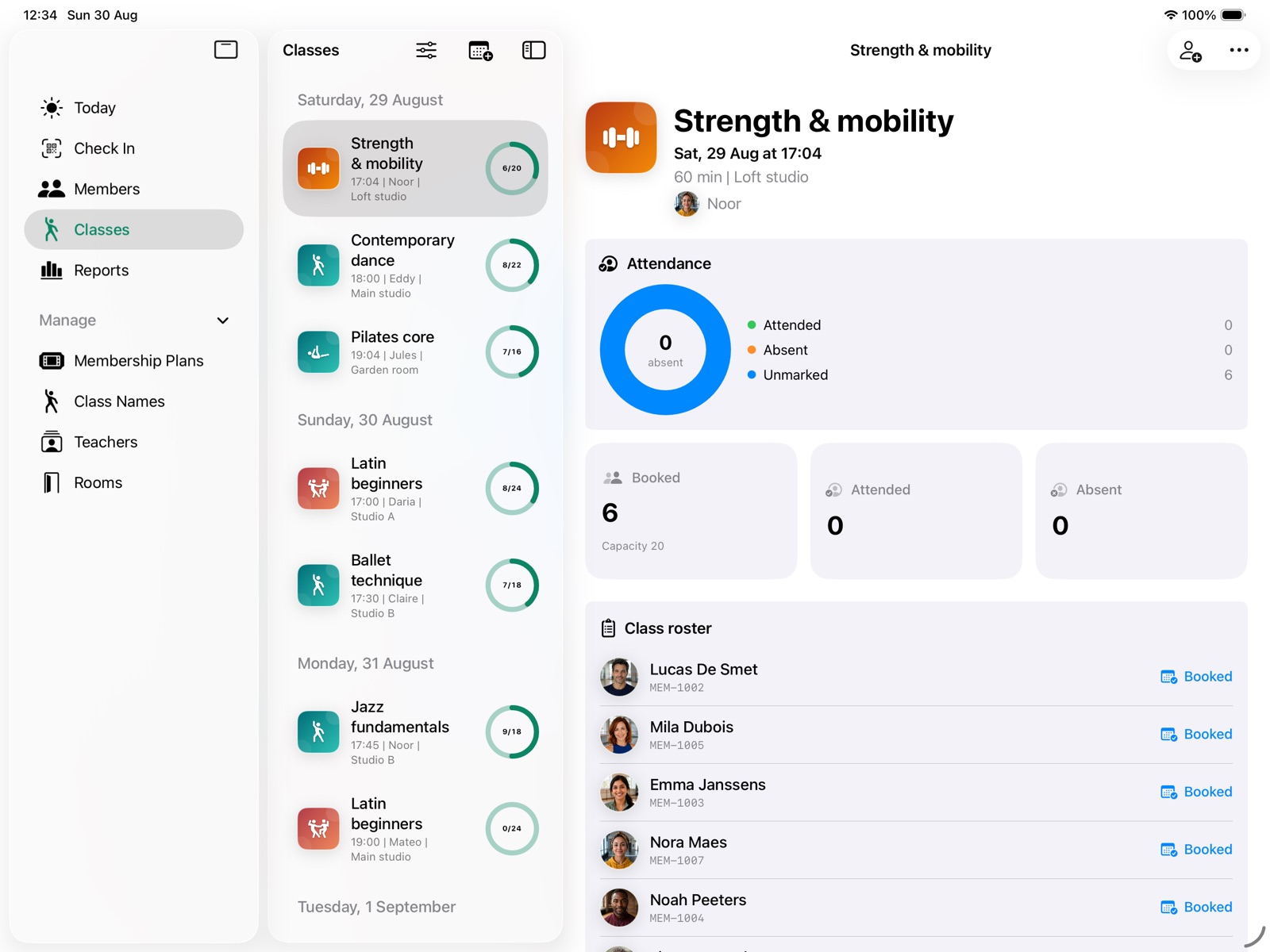
- Classes manages the timetable, bookings, attendance, and recurring sessions.
- Reports shows attendance, collected payments, outstanding balances, membership health, and class, teacher, and room performance.
- On iPad, open Manage > Payments in the sidebar for the payment ledger. The sidebar also provides Membership Plans, Class Types, Teachers, and Rooms.
- On iPhone, open Reports and select Payments to open the same ledger.
Screenshots in this guide use fictional demo data and may show earlier preview layouts. Follow the current workflow instructions below for memberships and payments.
Membership plans#
Create plans before selling or assigning memberships.
- Open Members and select Membership plans, or use Manage > Membership Plans on iPad.
- Select New plan.
- Enter the plan name and, if useful, an audience such as “65+” or “Under 18”.
- Choose Unlimited or Session pack.
- Set the price, currency, validity period, and number of visits for a session pack.
- Set weekday and weekend access. At least one must be enabled. Access times may cross midnight.
- Under Classes included, choose All classes, Selected classes, or General admission only. When choosing selected classes, open Included classes and select at least one reusable class type.
- Select Save.
Editing a plan’s sale terms does not rewrite memberships already sold, including their class access. Open an existing plan and turn off Available to sell to stop future sales while preserving previously purchased memberships.
Choose Pass color in the plan editor and select Save. The color identifies the plan in the list and on its Wallet pass. A color change also applies to memberships already sold after synchronization; their price, visits, validity and access rules stay the same. Older plans and memberships without a linked plan use Forest green. When a member has several memberships, the pass uses the color of the membership it displays, normally the usable one that expires first. The plan name stays visible. Installed passes need an active Wallet service and internet connection to receive changes.
Delete or archive a plan#
Open a plan and select Delete Membership Plan. Members! permanently deletes it only when no membership refers to it and no card payment is still in progress. Otherwise select Archive Membership Plan. Archiving stops future sales while preserving existing memberships and payment history.
Members and memberships#
Let members enter their own details#
In Members, open Add member → Registrations. Once the studio subscription is active and the owner’s Apple sign-in has connected the account, choose Enable online registration. Show the registration QR at reception or use Share registration link on your website or in an invitation. This requires the registration service to be installed on your club’s server.
Members open the link on their phone without installing an app or creating an account. They enter first and last name, with optional email and phone. Browser autofill can help. The form is available in English, German, Spanish, French, Italian and Dutch. A received confirmation means the details reached the club; it does not activate a membership or allow check-in.
Keep Registrations open to receive updates, or tap Refresh. Open a pending registration, check the details and any Possible duplicate, then choose Approve and choose membership. For an existing person, choose Use existing member; their contact details, memberships and payments are kept. Only create a separate member after confirming it is a different person. Approval opens the membership screen, where you select the plan and handle payment as usual. Add a photo from the member profile and use Wallet Pass or the printed QR card afterward. Existing Wallet delivery limits still apply.
For someone without a phone, choose Add member → Enter details on this iPad. An iPad passcode, Touch ID or Face ID must be configured first. The member fills in the form and returns the iPad. Return to staff requires owner authentication, including after restarting the app. The submitted form is saved locally and remains pending for review; this option works offline.
If online confirmation fails, keep the browser form open and retry. In Members, a processed registration marked as saved on this device needs Refresh to confirm with the server. Continue using the same authoritative club device; registration does not synchronize your business database between iPads.
Pause online registration closes the form. Replace registration link invalidates old links and printed registration QR codes while keeping pending submissions. Reject registration removes the submitted contact details without creating a member. Share only the club registration link, never another member’s private Wallet invitation.
Birthday and Sex are optional in both forms. Members can leave either blank. Staff review these details before approval; using an existing member keeps that member’s saved details. Submitting a form does not send an email, collect payment or assign a membership automatically.
Pending registrations saved on the iPad expire after 30 days. Members clears their name, contact details, birthday and sex at the next app startup or registration refresh, keeping only a minimal receipt with an identifier, status and account scope. This is not a continuous background cleanup. Expired registrations cannot be approved; accepted member records are unaffected.
Add a member#
- Open Members and select Add member.
- Enter first name, last name, and a unique member code.
- Add contact information and notes if needed.
- Optionally add a photo with the camera, paste an image, or copy the current image.
- Select Save.
Use search to find a member by name or member code. Open a profile and select Edit member to update it. Turning off Active member prevents check-in without deleting the member's history.
Optional personal details#
When adding or editing a member or teacher, you can enter a full date of birth and choose Sex: Female, Male, Other, or Prefer not to say. Both fields can be left blank. Turn on Birthday to enter Date of birth; turn it off to remove the date. Choose Not set to clear Sex. You can change these details later or remove the birthday. They are stored in the local studio workspace and included in workspace backups you export; they are not added to Wallet passes, emails, QR codes, or payment requests.
Delete or archive a member#
Open a member profile, select More, then select Delete Member. A member can be permanently deleted only when they have no memberships, bookings, attendance records, or payments. Otherwise select Archive Member. Archiving keeps their records, makes the profile inactive, and prevents check-in and new membership sales.
Sell or assign a membership#
- Open the member profile.
- Select Add membership, including when renewing an existing plan.
- Choose an available plan and check the purchased terms.
- Confirm the start date. An unlimited renewal of the same plan is suggested to start when the current one expires so paid time is not lost.
- Choose Paid now or Pay later.
- For Paid now, select a payment method. Use SumUp to charge the connected terminal, or record a payment already received by another method. For Pay later, choose Due on and select Save as unpaid.
Manual methods work without a SumUp connection. Record Paid on, an optional reference, and any note. Other requires a note. The membership activates when the payment is recorded; Complimentary activates it without adding money to Collected. A SumUp purchase activates only after SumUp confirms payment. Members! stores payment status and references, not card details.
Pay later saves the membership and its outstanding balance together. While Payment due, it cannot be used for check-in and does not grant usable Wallet access. The member's other usable memberships remain available.
An ordinary unpaid balance does not prevent adding another membership. An unresolved SumUp payment must be reviewed before starting another purchase for that member.
If a SumUp payment needs review, do not charge again. Open its record in Payments and follow the recovery instructions below.
A member can hold more than one membership; use Add membership for each additional plan. The member still has one QR code: it identifies the person, then the selected class filters their memberships. In staff check-in, choose when more than one membership is eligible. Only the chosen membership is used, and one visit is deducted if it is a session pack. A booked membership is suggested first; otherwise Members! suggests the eligible membership that expires first. Previously sold terms remain attached to each membership even if its plan is later edited.
Classes and bookings#
Prepare reusable class details#
On iPad, open Manage; on iPhone, open More. Use these separate screens to manage:
- Class Types, including a photo or activity artwork, default duration, and notes;
- Teachers, including contact details and an optional photo;
- Rooms, including one default room.
Items marked unavailable stay in existing records but cannot be chosen for new scheduling.
Delete or archive reusable class details#
Open a class type, teacher, or room in its own management screen and select its delete action. It can be permanently deleted only when no scheduled or past class uses it; a class type also cannot be deleted while a plan or sold membership includes it. Otherwise select its archive action. Archiving preserves schedules, access rules, and history while removing the item from choices for new classes.
Schedule a class#
- Open Classes and select New class.
- Choose a saved class type, teacher, and room, or enter the details manually when available.
- Set the start, duration, capacity, and optional notes.
- To create a series, enable Repeat weekly, choose the number of weeks, and add one or more weekly day-and-time slots.
- Select Save.
Each recurring occurrence has its own roster and attendance.
Publish classes online#
The online-booking steps in this section describe a local, unreleased foundation. They are not active on the production service yet.
When the secure Members! server is connected and staff are signed in, saving a future class also queues that occurrence for the private members.fitness schedule. Saving still works locally without internet; Members! retries the publication after reconnection. It sends the class name, teacher, room, time, capacity, and the class type needed to check plan access, but not the staff notes.
Edits and cancellations are synchronized in the same way. A cancelled published class stays cancelled online so its history is not mistaken for a new class. If the class or roster changed elsewhere, Members! keeps the local operation for review and reports a synchronization conflict instead of silently replacing it. Do not tell members that an update is online until synchronization has completed without a conflict.
When you change server-visible details such as the time, teacher, room, capacity, or class name while members are booked, Members! shows Queue notices for booked members. Turn it on before Save becomes available. This queues notices with the class change; it does not mean an email has been sent. Delivery remains a separate, gated server operation.
Cancel a scheduled class#
Open a class, select More, then select Cancel Class. A class can be cancelled here only while it is still in the future and has no recorded attendance. Cancellation removes it from the schedule but preserves its class and booking history. Other occurrences in a recurring series stay scheduled. If members are booked, confirm Cancel Class and Queue Notices; their still-booked rows become cancelled and the notices are queued. Started, past, or attended classes cannot be cancelled here.
Manage bookings and attendance#
- Open a class and select Manage bookings.
- Search for active members and select everyone who is booked. Members without an eligible membership cannot be added.
- If a member has several eligible memberships, choose the one intended for this booking.
- Select Save.
- During or after the class, set each booking to Booked, Attended, Absent, or Cancelled.
- After the class ends, Mark remaining as absent changes every still-booked reservation to absent.
When check-in is attached to a class, Members! revalidates access at the class start time, uses the booked membership when it is still eligible, and marks the booking attended. If the member was not booked, an attended booking is added with the membership actually used. Existing bookings that no longer have eligible access remain visible for staff review.
Online and staff bookings share the class capacity. The secure server makes the final seat decision, so two people cannot both take the last available place. A member's online change is pulled into the same class roster. Local roster changes are retained for retry when offline; a conflicting online change is shown for staff review rather than overwritten.
Booking reserves a place but does not deduct or hold a session-pack visit. A member can therefore have more future bookings than remaining visits. Members! checks the balance again when attendance is recorded; after the visits run out, check-in is refused until the membership offers usable access again. The same class attendance cannot deduct a visit twice.
Invite a member to book online#
The booking invitation is different from the member's check-in QR card and Wallet pass.
- Make sure the member is active and has at least one active membership, then open the member profile.
- Select Class Booking Link. If requested, connect the secure Members! server or sign in from Settings.
- Select Create 24-Hour Booking Link.
- Ask the member to scan the displayed invitation QR with their phone, or select Share Booking Link and send the private link directly to them.
- Share it only with that member. The link expires after 24 hours and can be used once to start their private booking session. Create a new link if it expires or has already been redeemed.
Creating a member or saving a class does not automatically email this invitation. General customer email remains disabled during the pilot. Never send the admission QR, printed member code, or Wallet invitation as a substitute: those identify the member at check-in or install a pass, but cannot sign in to the class portal.
Book or cancel at members.fitness#
After the member opens the private link, the portal shows only their first name, upcoming member-safe class details, remaining places, their own booking, and the sold memberships that can attend each class. It does not show the roster, staff notes, contact details, admission QR, member code, or another member's booking.
For a class covered by one membership, select Book this class. If several memberships can be used, the portal asks Which membership would you like to use?; select the intended plan explicitly. A full, cancelled, started, or ineligible class cannot be booked. The server checks the selected membership and capacity again before confirming the place.
Select Cancel booking before the class starts to release the place. The cancellation remains in history. A completed attendance or absence cannot be changed through the portal. Select Sign out on a shared device. The original invitation cannot be reused after it has started the private session.
The portal needs an internet connection for its schedule, booking, and cancellation. Booking confirmations, changes, cancellations, and reminders are prepared for future delivery, but staff must not promise an email until general customer delivery has been approved and activated for the studio.
Check-in#
- Open Check In.
- Choose General admission or select today's or tomorrow's class.
- Hold the member's printed or Wallet QR code in the rear-camera frame. Alternatively, enter the printed member code and select Check in.
- For a class, Members! considers only memberships that include it. If several are eligible, choose one; for general admission, ordinary access rules apply.
- Read the result before assisting the next member.
Possible results include:
- Welcome: check-in was recorded. One visit is deducted from the session pack used.
- Already checked in: the same member was recorded for general admission within the last 90 seconds, or attendance already exists for the selected class, so another visit is not deducted.
- Payment required: no usable membership is available. Staff can offer the walk-in payment flow.
- Payment due: a saved membership is awaiting payment. Open its existing record in Payments to settle it instead of creating a duplicate purchase.
- Membership not valid now: a membership exists but its day or time rules do not allow access.
- Inactive member: reactivate the member only after staff verify that this is appropriate.
- Member not found: check the manual code or use a current QR card.
If Keep owner scanner active is enabled, the rear camera can continue scanning while staff use other tabs. A scanner status button appears when it needs attention.
Member Mode on iPad#
Member Mode provides a privacy-limited, front-camera self check-in screen on iPad. It is not available on iPhone. Set an iPad passcode, Touch ID, or Face ID before opening Member Mode from Check In.
Choose a class in Check In before opening Member Mode if visits should be recorded for that class. Otherwise, scans record general admission. A member scans their printed or Wallet QR code, or enters their member code and taps Check In. A successful scan or code entry records attendance immediately and deducts one visit when a session pack is used; there is no class chooser after scanning. Members! checks the member's current access and selects an eligible membership automatically. It rejects an unknown or inactive member, a recent duplicate, or a membership that does not allow entry. The latest result appears briefly. Member Mode does not show the staff membership chooser or payment ledger; staff resolve access or payment problems in the owner screens.
To let someone enter their own details, tap Join this club in the upper-right corner of the camera view. The member scans the displayed QR with their own phone and completes the registration form. The QR closes after ten seconds; close it sooner with the button on the QR screen. The button appears when the secure Members server provides a club join link to a signed-in staff account. A submitted form becomes a pending registration, not an active membership. Staff review it in Members > Registrations, then choose a membership and payment.
When automatic handover is active, tilt the iPad toward the member to enter Member Mode. Tilt it back and authenticate to return to the owner screens. The Owner button also requires authentication. If you choose Stay in Member Mode or cancel authentication, Member Mode remains open without another error prompt. The rear owner scanner resumes after the front camera closes; open Check In if you need to scan a member there. Apple Guided Access can add a stronger system-level kiosk lock.
Do not leave owner screens visible on an unattended device. Member Mode reduces exposure but does not replace staff supervision or device security.
QR cards, Wallet, and printing#
Every member profile contains a QR card and printed member code.
- Select Share to send the QR card using the iOS share sheet.
- Select Print to use the configured Epson or Star receipt printer, or System Print for Apple printing.
Connect or recover a Wallet account#
When you sign in with Apple for your studio subscription, Members automatically connects an existing Wallet account or creates the paid studio’s owner account once paid access is active. No first-owner code is needed. If setup is interrupted, you wait too long before purchasing, or the app restarts before Wallet connects, open Settings → Wallet account and sign in with the same Apple Account as your studio subscription. Use that same account to reconnect after signing out. Your local records stay on this device; signing in does not restore a local backup.
Delete a Wallet account#
Only the Wallet account owner can delete it. An active subscription is not required for deletion.
- Open Settings → Wallet account and choose Delete Wallet account. If signed out, choose Delete an existing Wallet account and sign in with Apple as its existing owner. This sign-in permits deletion only; it does not enable Wallet synchronization or connect your local workspace to that account.
- Choose Delete Wallet account in the deletion screen and read the explanation. Deletion permanently erases hosted Wallet and member records and stops online updates and downloads.
- Choose Continue to deletion and confirm your Apple identity. Wait for Wallet account deleted before treating the request as complete.
Your local member, membership, attendance, and payment records remain on this device. Cancel your Apple subscription separately in subscription settings. Passes and copies already saved on members’ devices may remain unchanged; members must remove them themselves. Deleting the hosted account does not replace local QR codes or change local admission rules. You may also need to reconnect Apple sign-in for other Members services.
If deletion is interrupted or pending, reopen Delete Wallet account on the same device and choose Retry deletion. Members continues the saved request. If asked, confirm the same owner’s Apple identity again. Keep the app and its data while the request is pending. If it cannot be resumed, contact support; a pending message is not confirmation that deletion has finished.
Send and update Wallet passes#
Create and save the member with their email address, then add and activate a membership. Open Wallet Pass in the member profile. If requested, choose Open Settings and connect the Wallet account with the studio owner’s Apple Account. Choose Email Wallet Pass to send the signed Apple attachment and private Wallet link to the address shown. Creating a member does not send an email automatically. During the pilot, email is limited to approved test addresses. Email sent confirms that Members submitted the message; check the inbox and spam folder. On iPhone, open the attachment or link and choose Add to Apple Wallet. On Android, open the link and choose Add to Google Wallet. The Wallet screen reports each platform separately after Apple registers the pass or Google reports it saved. Neither status identifies the phone model or a specific device. If delivery needs checking, contact support before sending again. Alternatively, use Share Wallet Link and share its QR code or private link with the member.
The email contains a membership card summary sized for the screen, using the selected membership artwork and color and showing the member name, plan, remaining visits or unlimited access, validity, status, member code, and a scannable check-in QR. The Apple attachment is the same signed pass, and the button opens the private Wallet page with Apple and Google actions. A plain text version is included for mail apps that do not display the design; it includes the member code as a fallback without exposing the raw QR credential. The email details are a snapshot and cannot update, but scanning its QR always makes Members check the member's current status, usable membership, dates, sessions, and access rules. A member who does not use a Wallet app can therefore present the QR at reception or use the member code. The QR uses the same opaque credential as the Wallet pass and stays valid until staff choose Replace QR Code. The private Wallet link expires after 24 hours without expiring the QR. Keep the email private: forwarding it also gives the recipient the check-in QR. The member's profile photo is not included in the email card.
Settings → Studio → Wallet logo sets the default image for Wallet passes, independently of Today artwork. Choose a library image, use Upload image for Photos or Choose from Files, then Save. Imported images keep their proportions; use a clear PNG, JPEG or HEIC image up to 12 MB. Use standard logo returns to a neutral studio symbol. In a membership plan, Wallet artwork can use a library image or an import of its own. Use studio logo removes that override. Save the plan to apply the choice to existing linked memberships after synchronization. The artwork and color follow the same membership shown on the pass. Without a plan override, the current studio logo is used. Installed passes need an active Wallet service and internet to receive updates.
If the member has a profile photo, the Apple Wallet pass can show it beside their name. Edit or remove the photo in the member profile to update the saved Apple pass after synchronization. Only small copies prepared for Wallet are sent; the original photo is not included. Google Wallet uses the studio and plan artwork without the personal photo.
Only share this private invitation with the member. It expires after 24 hours; a saved pass keeps the same identity through renewals and displays the selected plan, remaining visits or unlimited access, validity, status, and check-in QR code. Choose Add to Apple Wallet on iPhone or Add to Google Wallet on Android.
Pass updates require the secure Members service, Apple/Google issuer setup, and an internet connection. Failed updates are retained and retried when Members is active after reconnection or relaunch. The server also retries delivery and refreshes expiry changes. Updates are asynchronous: the membership held by Members determines access at the door. If the app reports a newer update on the server, contact support before issuing the pass. Open Settings provides a route to staff sign-in; contact support if Wallet delivery still needs activation.
One QR card identifies the member across all of their memberships; a second plan does not need a second QR. Payment-due and cancelled memberships are not synchronized as active Wallet memberships. The local Wallet preview may still show their payment status. The QR does not override payment, date, session, time, or class-access restrictions.
The separate Class Booking Link does not replace this QR card. The booking link starts a private online session and cannot be used for admission; the admission QR identifies the member at the club and cannot sign in to the booking portal.
Use Replace QR Code only when the existing card is lost, copied, or should no longer be trusted. Replacement immediately invalidates the current QR credential and disables its legacy QR code. Print or send the replacement afterward. A previously issued Wallet pass also needs replacement or refresh through the configured server.
Epson or Star receipt printer#
- Switch on and connect or pair the printer.
- Open Settings > Printing and choose Epson or Star.
- Use Find Printers and select the device. Epson also accepts an IP address or host name. Star accepts the connection identifier from its information sheet.
- Choose 58 mm or 80 mm paper and whether to cut after printing.
- Select Print Test Ticket.
Discovery and printing can use compatible Ethernet, Wi-Fi, Bluetooth, BLE, or USB connections. Some classic Bluetooth and USB models require vendor MFi approval. A successful simulator or network check does not certify every physical printer model.
Payments#
Members! provides lightweight payment tracking, not accounting software. It records what was paid, when, by which method, and what is still due. It does not create accounting invoices, calculate taxes, reconcile bank statements, or execute refunds.
Choose a payment method#
Membership purchases use the price and currency saved with the selected plan:
- Cash: record cash already received.
- Bank transfer: record a transfer after confirming that it arrived.
- External card: record a payment already taken on another terminal.
- Other: record another received payment and add the required identifying note.
- Complimentary: activate the membership without collecting money.
- SumUp: charge through the official SumUp integration and connected terminal.
For manual methods, Members! only records the payment; it does not move money or verify a transfer or terminal transaction. Select the actual Paid on date and time and add a reference or receipt number when useful. Do not enter card details.
Review and settle balances#
Open Manage > Payments on iPad or Reports > Payments on iPhone. Search by member, code, membership, or reference, and use the period, status, and method filters.
- Collected shows money received in the selected period, grouped separately by currency and using the paid date, not the date the record was created.
- Outstanding shows current unpaid membership balances, including those recorded before the selected period.
- Needs review includes failed or unfinished SumUp payments and overdue balances. A payment becomes Overdue only after its local Due on calendar day has ended.
To settle an unpaid membership, open the payment, select Mark paid, choose the actual method and Paid on date, and confirm Mark paid and activate. Complimentary closes the balance without adding money to Collected.
Settling an existing unpaid balance records a manual payment method; it does not start a SumUp charge.
If the membership's original start precedes the paid date, settlement moves the start to that paid date and preserves the originally saved duration between start and expiry. It does not recalculate a calendar-month plan from scratch. If the start is still later than the paid date, the original future dates remain unchanged.
To abandon an unpaid purchase, select Cancel unpaid membership and confirm. The balance closes and the membership remains unusable. The payment and membership records stay in the history; this is not a deletion or a refund, and the cancellation cannot be undone from this screen.
Recover an unfinished SumUp payment#
Never start another charge just because saving or activation was interrupted.
- Open the existing SumUp record in Payments.
- If the saved acceptance is available, select Finish activation. Members! uses the recorded transaction and acceptance time to finish saving without charging again.
- If no acceptance is available, first verify this exact payment in SumUp using the displayed Members reference and your SumUp records.
- If it was paid, select I confirmed it was paid in SumUp, enter the actual SumUp transaction code and verified Paid on date and time, then confirm activation.
- Only if you verified that no payment was taken, select I confirmed no payment was taken and confirm the unsuccessful payment and membership cancellation. If uncertain, leave the record for review.
Completed SumUp transactions are read-only in Members!. Reconciliation records the result you verified; it does not request a refund or make another charge.
If Members! warns that the member or plan changed while the terminal was open, the accepted payment is retained. Staff must review the member and plan before granting access.
SumUp setup and walk-ins#
Connect the merchant under Settings > SumUp payments. The walk-in payment flow still requires SumUp and charges in EUR; it can create a one-visit pass after a successful single-class payment. After success, select Continue to check-in. The manual methods above apply to membership purchases and outstanding membership balances, not to this walk-in screen.
Simulator payments are clearly marked tests and do not move money. Tap to Pay on iPhone is planned but is not currently available; it also is not available on iPad.
Never store card numbers, merchant credentials, affiliate keys, or authentication codes in member notes.
Reports and CSV exports#
Open Reports and choose the reporting period. Members! shows:
- attendance and daily attendance trend;
- Collected payments in the selected period and current Outstanding balances, with separate totals for each currency;
- Payments by method, including complimentary memberships with no collected money;
- new members;
- finalized reservation no-show rate;
- active, payment-due, expiring, upcoming, expired, depleted, and cancelled membership health;
- class, teacher, and room capacity, bookings, attendance, absences, and rates.
The attendance heat map groups check-ins by weekday and hour within the selected period. Monday through Sunday run down the left; the hours run from 06:00 through 05:00 across the top, labeled every three hours. Darker cells mean more check-ins. Tap a cell to see its count. On iPhone, swipe the grid sideways to see later hours. If the period has no check-ins, the grid stays empty and shows a message.
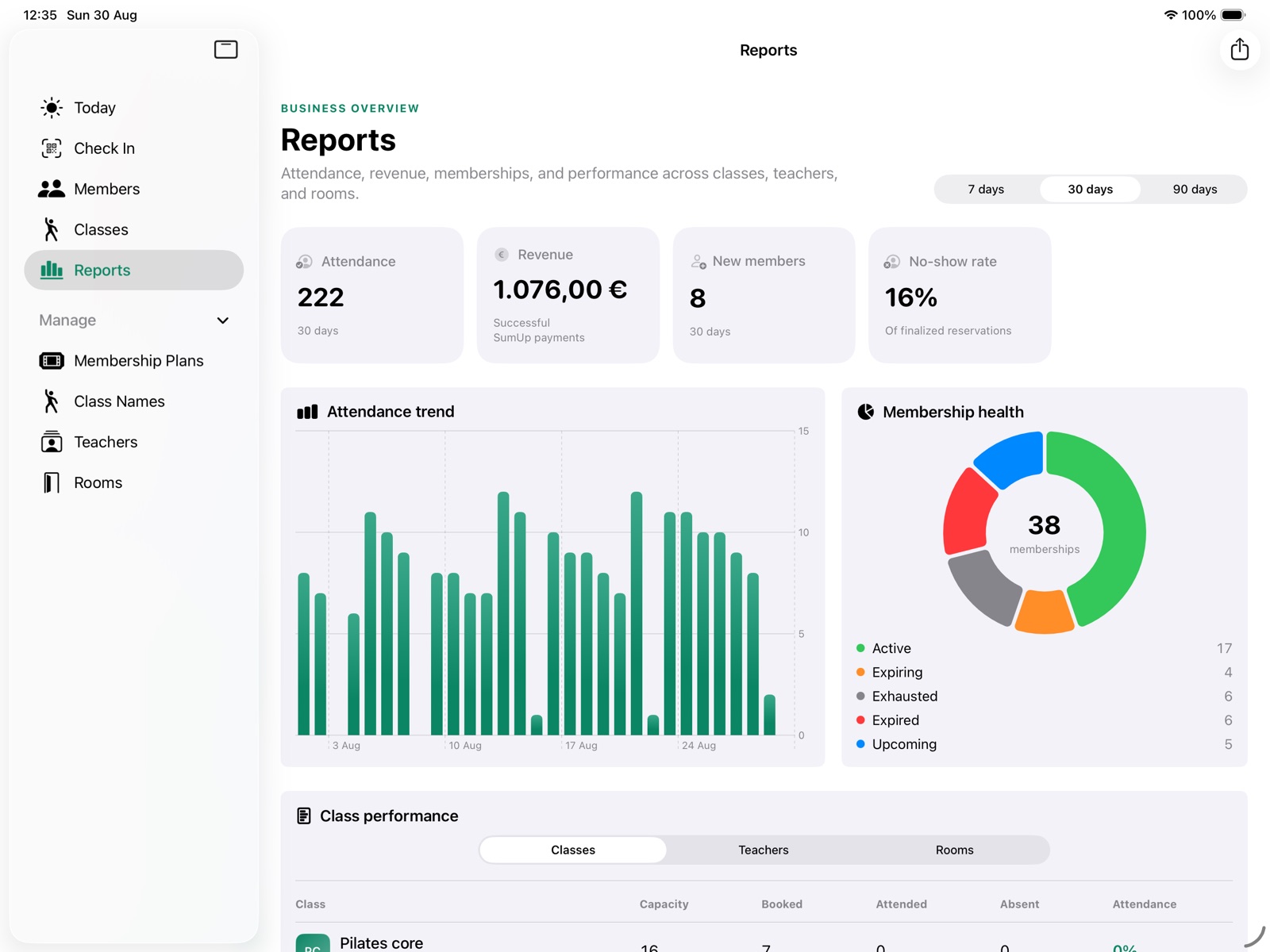
Collected totals use the paid date. Older paid records without a separate paid date use their recorded date. Outstanding balances remain visible regardless of the reporting period. Failed, unfinished SumUp, cancelled, and refunded payments do not count as collected money; complimentary memberships contribute zero.
Use Export CSV > Payments to share payment IDs, member and membership names, status, method, amount, currency, recorded/paid/due dates, reference, and note. The export includes activity in the selected period plus every current outstanding membership balance, even if older. Keep currencies and statuses separate when using the file; adding every amount would mix paid money with unpaid or unsuccessful records.
Attendance and class, teacher, and room performance exports remain available. CSV files can contain private customer data, payment references, and notes. Share them only with authorized recipients and store them securely.
Data and privacy#
- Member, membership, class, attendance, and payment-reference data is stored locally with SwiftData.
- Diagnostic logs must not contain member data.
- Card details are handled by SumUp and are not stored in the Members! database.
- Online synchronization and Wallet services require authenticated access to the secure Members! server.
- The class portal returns only the signed-in member's private schedule and booking information. Portal invitations, admission QR codes, member codes, Wallet tokens, and staff sessions serve different purposes and are not interchangeable.
- The current product does not yet provide a finished production backup service or coordination between multiple independently offline check-in devices.
Use device passcodes, restrict staff access, install trusted operating-system updates, and define an operational backup and recovery procedure before storing real customer data. Treat exported CSV files, member photos, contact details, notes, and attendance as private data.
Troubleshooting#
The camera is unavailable#
Open the iPhone or iPad Settings app, find Members!, and allow Camera access. Close other camera activity and return to Members!. On iPad, leave Member Mode before trying to use the rear owner scanner.
A member cannot check in#
Check that the member is active, the QR card is current, and a membership is within its start and expiry dates. Check remaining sessions and the weekday, weekend, and time restrictions. A payment-due membership must be settled through its existing Payments record; a cancelled membership cannot be used. Try the printed member code manually. If there is no usable membership or existing balance to settle, sell a plan or use the authorized SumUp walk-in payment flow.
A session was not deducted twice#
This is expected if the second scan happened within 90 seconds. Duplicate protection records only the first check-in and prevents a second session deduction.
The wrong membership was used#
Staff check-in offers a chooser when several memberships are eligible for the selected class. Select the intended membership before confirming the visit; only its sessions are affected. A booked membership is suggested first. Member Mode uses that booking when eligible, otherwise the eligible membership that expires first. Review each membership's class access, day/time rules, dates, and remaining sessions in the profile.
A booking link or online schedule does not open#
Confirm that the phone has internet access and opens the exact private link from the studio. The invitation expires after 24 hours and works only once; create a new Class Booking Link when it is expired, incomplete, already used, or was shared with the wrong person. Staff must be signed in and the secure Members! server must be connected to create a link. Do not try the member's admission QR, printed member code, or Wallet link instead.
If the member is signed in but a class is missing or unavailable, check that the future class synchronized without a conflict and that the sold membership is active at the class start, has sessions remaining, permits that day and time, and includes the class. A full, cancelled, or already started class cannot be booked. Refresh the portal after staff resolve the cause.
A class or booking has not synchronized#
Keep the local record and restore internet access; Members! retries queued class and roster changes. Sign in again if the staff session expired. Open Settings and check Class booking synchronization. If it reports Needs attention, compare the local roster and class details with the online result before making another edit. Do not create a duplicate class, booking, or membership to force synchronization, and do not promise an online place until the conflict is resolved.
A printer is not found#
Confirm that the printer is switched on, connected to the same permitted network or paired with the device, and supported by the selected Epson or Star driver. Scan again. For Epson network printers, try the IP address or host name. For Star, verify the identifier on the printer information sheet. Print a test ticket before printing member cards.
A payment cannot start#
For a SumUp charge, open Settings > SumUp payments and check configuration, merchant connection, terminal pairing, network access, and account status. You can save a membership without SumUp by choosing a manual method under Paid now, or Pay later if nothing has been received. Do not create another purchase after an uncertain charge. First review the existing SumUp record in Payments and follow the recovery steps above.
Member Mode will not open or close#
Set a device passcode and enable Touch ID or Face ID. Confirm that the iPad front camera is available. Use the Owner button and authenticate. If Guided Access is enabled, leave it using the studio's approved device procedure.
Wallet or other synchronization is unavailable#
The secure Members! server may not be configured or reachable. Local operations can continue, but do not promise a Wallet pass or completed synchronization until the server connection is restored and verified.
Support#
For help with Members!, email support@waiterone.net. Include the app version, device model, iOS or iPadOS version, and a description of what happened. Never email card details, passwords, authentication codes, or unnecessary member data.